# Kali VM

I typically prefer to install it myself([using the ISO](https://www.kali.org/get-kali/#kali-installer-images)), BUT you can grab a [pre-made VM](https://www.kali.org/get-kali/#kali-virtual-machines) (using [7-Zip](https://www.7-zip.org/download.html) to extract it) from them. I have VMWare Workstation Pro but Player works just as well. You can go with either VMWare or Virtualbox, both work and it just comes down to personal preference on the application and what you're use to.

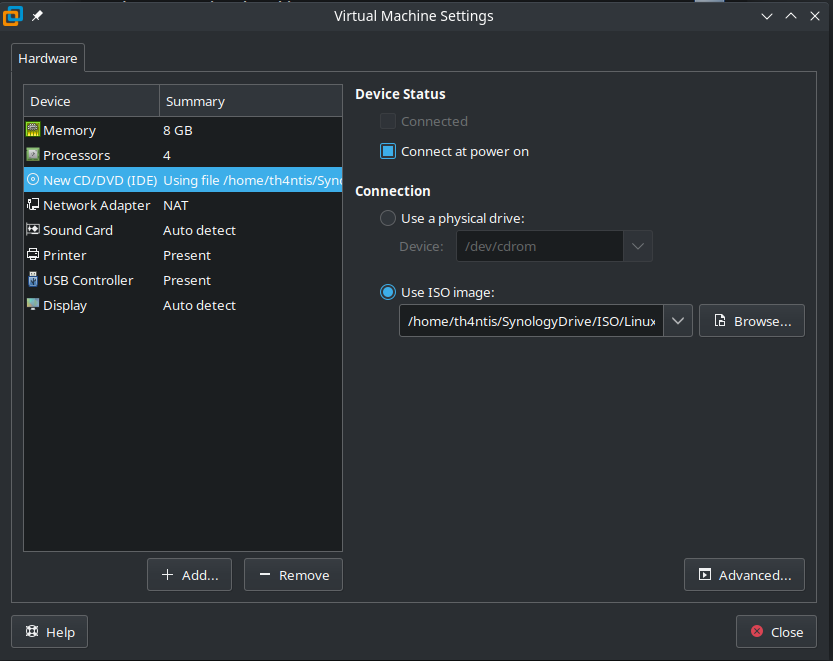
Obviously your setup may differ depending on your system specs. I typically go with 4GB(4096 MB) of RAM per VM, 2 processors and 2 cores per processor but I am running with 32GB of RAM and an Intel i7-10750H.

If you need to, you can start with 4 or 8GB of RAM and 2 processors and 2 core per processor, for the install so it goes faster then drop it down to 2 or 4GB of RAM and 2 processors and 1 core per processor for the victim machines.

## Kali ISO Starting

We will start with the Typical configuration

<figure><img src="https://667808901-files.gitbook.io/~/files/v0/b/gitbook-x-prod.appspot.com/o/spaces%2FTdW22AGCceN8oUXfdlKI%2Fuploads%2Fc0da52pDRokRufzkPZ1U%2Fimage.png?alt=media&#x26;token=81fe75b2-5bf8-4de6-b89b-51a1cb1f5f71" alt=""><figcaption></figcaption></figure>

Then install choose "I will install the Operating System Later"

<figure><img src="https://667808901-files.gitbook.io/~/files/v0/b/gitbook-x-prod.appspot.com/o/spaces%2FTdW22AGCceN8oUXfdlKI%2Fuploads%2F24SlQxT2gBtM1rrX5oWV%2Fimage.png?alt=media&#x26;token=0b8afa18-f3a0-40a9-99aa-3a30ae5bd84a" alt=""><figcaption></figcaption></figure>

Select Linux, then select the Debian 64-bit version.

<figure><img src="https://667808901-files.gitbook.io/~/files/v0/b/gitbook-x-prod.appspot.com/o/spaces%2FTdW22AGCceN8oUXfdlKI%2Fuploads%2FcEkVVA0GwRIUxMLUxSzb%2Fimage.png?alt=media&#x26;token=18a861ea-9bbb-4535-9bf0-ee87d2b5729c" alt=""><figcaption></figcaption></figure>

Give the machine a name and choose where to save it

<figure><img src="https://667808901-files.gitbook.io/~/files/v0/b/gitbook-x-prod.appspot.com/o/spaces%2FTdW22AGCceN8oUXfdlKI%2Fuploads%2FNO0MBV1AAC7qjPFOKJeN%2Fimage.png?alt=media&#x26;token=b806027e-5916-4619-a5e6-69d511221621" alt=""><figcaption></figcaption></figure>

Select the size of the VM. This will **NOT** the overall size, this is just the max size of the VMs HDD space and will fill up as we add more to the VM that takes up space.

If this VM will be on a PC and not be used from an external HDD or moved around you can store it as a single file but if you plan on using this VM on other PC or from an external HDD it's a better idea to split it into multiple files.

Depending on your space, you can edit how much you want. I usually go 60GB or 80GB depending.

<figure><img src="https://667808901-files.gitbook.io/~/files/v0/b/gitbook-x-prod.appspot.com/o/spaces%2FTdW22AGCceN8oUXfdlKI%2Fuploads%2FUkuztQVBpl2fzhWkv9Wf%2Fimage.png?alt=media&#x26;token=ed90c2a7-6c12-47e6-ada7-16707dd94e33" alt=""><figcaption></figcaption></figure>

Finally we can now customize our hardware. This is where we can customize the RAM, Processors, ISO files, Network Settings, etc. This is where we select our Kali ISO.

<figure><img src="https://667808901-files.gitbook.io/~/files/v0/b/gitbook-x-prod.appspot.com/o/spaces%2FTdW22AGCceN8oUXfdlKI%2Fuploads%2FG64QgaqpSfn2jXXqP3fc%2Fimage.png?alt=media&#x26;token=f47b5416-754a-4262-a404-15f8d2504cfd" alt=""><figcaption></figcaption></figure>

<figure><img src="https://667808901-files.gitbook.io/~/files/v0/b/gitbook-x-prod.appspot.com/o/spaces%2FTdW22AGCceN8oUXfdlKI%2Fuploads%2F3ZZ0ugaHXt0tJqpxM1Ci%2Fimage.png?alt=media&#x26;token=9597f69a-b9b2-4b91-80b2-ca277e099849" alt=""><figcaption></figcaption></figure>

## Kali ISO Installation

Now we close that and can start our VM and install it. Once we start the VM, it'll take us to a list, I'm going to choose Graphical Install

<figure><img src="https://667808901-files.gitbook.io/~/files/v0/b/gitbook-x-prod.appspot.com/o/spaces%2FTdW22AGCceN8oUXfdlKI%2Fuploads%2FEegJ9wfegbjriiriVJHK%2Fimage.png?alt=media&#x26;token=aa3da120-b041-4bf9-b4cc-364db4589ec2" alt=""><figcaption></figcaption></figure>

Choose your language and Region

<figure><img src="https://667808901-files.gitbook.io/~/files/v0/b/gitbook-x-prod.appspot.com/o/spaces%2FTdW22AGCceN8oUXfdlKI%2Fuploads%2FhojJ9YXQE3WUUYOlRmWk%2Fimage.png?alt=media&#x26;token=941f52c0-c604-45d4-a008-e74b270053db" alt=""><figcaption></figcaption></figure>

<figure><img src="https://667808901-files.gitbook.io/~/files/v0/b/gitbook-x-prod.appspot.com/o/spaces%2FTdW22AGCceN8oUXfdlKI%2Fuploads%2FGslkwjTZRrtanVu1qcae%2Fimage.png?alt=media&#x26;token=809a0842-5337-42bf-b512-c1f4d74d9b40" alt=""><figcaption></figcaption></figure>

Choose your Keyboard layout

<figure><img src="https://667808901-files.gitbook.io/~/files/v0/b/gitbook-x-prod.appspot.com/o/spaces%2FTdW22AGCceN8oUXfdlKI%2Fuploads%2FBH7bcoMZJYYTZIRtYSfk%2Fimage.png?alt=media&#x26;token=fdded6d3-56c3-404b-8b45-1902ceeb0ce2" alt=""><figcaption></figcaption></figure>

Give the machine a hostname

<figure><img src="https://667808901-files.gitbook.io/~/files/v0/b/gitbook-x-prod.appspot.com/o/spaces%2FTdW22AGCceN8oUXfdlKI%2Fuploads%2FSIzz161WJTFl06onVSAi%2Fimage.png?alt=media&#x26;token=860ffa29-10b1-44a2-a823-400d26951266" alt=""><figcaption></figcaption></figure>

If you have a domain name you would like this to utilize, input it here. I will be leaving mine blank.

<figure><img src="https://667808901-files.gitbook.io/~/files/v0/b/gitbook-x-prod.appspot.com/o/spaces%2FTdW22AGCceN8oUXfdlKI%2Fuploads%2Fz3DfYZsqYHm73TNk5OTY%2Fimage.png?alt=media&#x26;token=0675e839-02a4-4da4-927b-0f4310b54d9b" alt=""><figcaption></figcaption></figure>

Choose a username for your account

<figure><img src="https://667808901-files.gitbook.io/~/files/v0/b/gitbook-x-prod.appspot.com/o/spaces%2FTdW22AGCceN8oUXfdlKI%2Fuploads%2F7qrwgUhUjOuL7P9b43BO%2Fimage.png?alt=media&#x26;token=9758b4fb-8d72-444f-b5ac-6eda1779ef7b" alt=""><figcaption></figcaption></figure>

<figure><img src="https://667808901-files.gitbook.io/~/files/v0/b/gitbook-x-prod.appspot.com/o/spaces%2FTdW22AGCceN8oUXfdlKI%2Fuploads%2FNMMS01TVTdz1tR2vVBzd%2Fimage.png?alt=media&#x26;token=986174df-f552-4240-bc27-89234bbb5eaa" alt=""><figcaption></figcaption></figure>

Input a password for the user

<figure><img src="https://667808901-files.gitbook.io/~/files/v0/b/gitbook-x-prod.appspot.com/o/spaces%2FTdW22AGCceN8oUXfdlKI%2Fuploads%2FiSZlw0Alim4ghrxi0zOu%2Fimage.png?alt=media&#x26;token=02feafbe-f986-4538-8c8b-0ed868d7196b" alt=""><figcaption></figcaption></figure>

Choose the timezone for the VM

<figure><img src="https://667808901-files.gitbook.io/~/files/v0/b/gitbook-x-prod.appspot.com/o/spaces%2FTdW22AGCceN8oUXfdlKI%2Fuploads%2FkPm96gMLQYFhXybf1U3V%2Fimage.png?alt=media&#x26;token=b6f553b1-c617-44d0-960e-7bfb3bcd23f9" alt=""><figcaption></figcaption></figure>

For a Vm, we will use the entire disk.

<figure><img src="https://667808901-files.gitbook.io/~/files/v0/b/gitbook-x-prod.appspot.com/o/spaces%2FTdW22AGCceN8oUXfdlKI%2Fuploads%2FzpJWhcwUxW9OTCGlywgO%2Fimage.png?alt=media&#x26;token=43671d68-f965-4a64-9ddb-ca1bf8e9d774" alt=""><figcaption></figcaption></figure>

Pick the disk you would like to use

<figure><img src="https://667808901-files.gitbook.io/~/files/v0/b/gitbook-x-prod.appspot.com/o/spaces%2FTdW22AGCceN8oUXfdlKI%2Fuploads%2FUCUebBZRKs4vgJsxE77i%2Fimage.png?alt=media&#x26;token=21224036-8319-43b4-b61a-27a3b2a0a8ee" alt=""><figcaption></figcaption></figure>

Pick how you may want to partition the drive. Usually for a VM instance, you can put everything into one partition.

<figure><img src="https://667808901-files.gitbook.io/~/files/v0/b/gitbook-x-prod.appspot.com/o/spaces%2FTdW22AGCceN8oUXfdlKI%2Fuploads%2Fp5dusUNs9ziNM9N9Jr45%2Fimage.png?alt=media&#x26;token=a387b6c5-ba62-43b7-b397-2d70e50f2d2c" alt=""><figcaption></figcaption></figure>

Verify the partition changes

<figure><img src="https://667808901-files.gitbook.io/~/files/v0/b/gitbook-x-prod.appspot.com/o/spaces%2FTdW22AGCceN8oUXfdlKI%2Fuploads%2FnTfxBaNy88h4T7D2rgva%2Fimage.png?alt=media&#x26;token=0ede6174-b7ba-488c-81e6-c4399744d06b" alt=""><figcaption></figcaption></figure>

<figure><img src="https://667808901-files.gitbook.io/~/files/v0/b/gitbook-x-prod.appspot.com/o/spaces%2FTdW22AGCceN8oUXfdlKI%2Fuploads%2FHRpyW1QVD4iy6vLgK6WL%2Fimage.png?alt=media&#x26;token=f0b3611e-8229-482b-b5ae-8d4bb4ac5cd9" alt=""><figcaption></figcaption></figure>

Let the VM Install

<figure><img src="https://667808901-files.gitbook.io/~/files/v0/b/gitbook-x-prod.appspot.com/o/spaces%2FTdW22AGCceN8oUXfdlKI%2Fuploads%2FBjGshoCtFVU0f5MiVNca%2Fimage.png?alt=media&#x26;token=09d62522-0b7b-4c16-979a-ab5734d12046" alt=""><figcaption></figcaption></figure>

Choose if you want another Desktop Environment(DE) or if you do/don't any extra tools to bein installed

<figure><img src="https://667808901-files.gitbook.io/~/files/v0/b/gitbook-x-prod.appspot.com/o/spaces%2FTdW22AGCceN8oUXfdlKI%2Fuploads%2FUfmjzcLaDrNnVdKHah0h%2Fimage.png?alt=media&#x26;token=35af1149-2e2d-4cb5-8f72-e27f7d6e07ba" alt=""><figcaption></figcaption></figure>

After that finishes installing, choose to install the GRUB bootloader

<figure><img src="https://667808901-files.gitbook.io/~/files/v0/b/gitbook-x-prod.appspot.com/o/spaces%2FTdW22AGCceN8oUXfdlKI%2Fuploads%2FMlqfAqiHtkaMi80eH4Uw%2Fimage.png?alt=media&#x26;token=c35aae7e-d70f-4aaf-92c2-8f6b230a638c" alt=""><figcaption></figcaption></figure>

<figure><img src="https://667808901-files.gitbook.io/~/files/v0/b/gitbook-x-prod.appspot.com/o/spaces%2FTdW22AGCceN8oUXfdlKI%2Fuploads%2FCChPQ8qERDOndgVQTH9q%2Fimage.png?alt=media&#x26;token=5ffbd9fd-da61-49a4-ad90-817550a477d8" alt=""><figcaption></figcaption></figure>

Once install is finished, you'll beboot the system and done!

<figure><img src="https://667808901-files.gitbook.io/~/files/v0/b/gitbook-x-prod.appspot.com/o/spaces%2FTdW22AGCceN8oUXfdlKI%2Fuploads%2FI0qNUMN0S4LcWMxkzjpd%2Fimage.png?alt=media&#x26;token=7435a3a4-354e-4f58-8d23-e010bde16c70" alt=""><figcaption></figcaption></figure>

###

***

### Post Install

Once we're in, it's a good idea to open the terminal, and we update everything with `sudo apt update && sudo apt upgrade -y`.

Now is when you will want to shut down the VM and adjust RAM and Processors if needed. Drop it for 2GB or 4GB of RAM and 1 or 2 processors.

From here you can explore and find things, change settings, and learn. I **HIGHLY** recommend creating a snapshot after you have this done and setup so that way you can always revert back to that snapshot if needed if something breaks or you just need to clean things up.

I recommend using some additional software such as [PimpMyKali from DeWalt](https://github.com/Dewalt-arch/pimpmykali/blob/master/README.md).

***

## Kali VM

### VMWare

<figure><img src="https://667808901-files.gitbook.io/~/files/v0/b/gitbook-x-prod.appspot.com/o/spaces%2FTdW22AGCceN8oUXfdlKI%2Fuploads%2F7HdJmbXolmugv7EugrTc%2Fimage.png?alt=media&#x26;token=6c92b8b3-c137-42f3-9a3f-940883858ec3" alt=""><figcaption></figcaption></figure>

Download the .7z file and extract it with [7Zip](https://www.7-zip.org/) in whatever manor that works for you.

<figure><img src="https://667808901-files.gitbook.io/~/files/v0/b/gitbook-x-prod.appspot.com/o/spaces%2FTdW22AGCceN8oUXfdlKI%2Fuploads%2Fs7lu220hF5lsuuwHDvOj%2Fimage.png?alt=media&#x26;token=c936a34d-7756-40ce-967f-47883b614f8f" alt=""><figcaption></figcaption></figure>

With the VM extracted, within VMWare, File > Open, then navigate to the directory with the .vmx file.

<figure><img src="https://667808901-files.gitbook.io/~/files/v0/b/gitbook-x-prod.appspot.com/o/spaces%2FTdW22AGCceN8oUXfdlKI%2Fuploads%2F2Lzni5EBgDLL81mItymc%2Fimage.png?alt=media&#x26;token=4492167f-d822-4dce-8340-ecb4983d4b4a" alt=""><figcaption></figcaption></figure>

From here, you can see the default settings on the site, but can edit them better suited to your machine.

<figure><img src="https://667808901-files.gitbook.io/~/files/v0/b/gitbook-x-prod.appspot.com/o/spaces%2FTdW22AGCceN8oUXfdlKI%2Fuploads%2FEAMtzOul7HrXaQMO4Jc4%2Fimage.png?alt=media&#x26;token=f21b9829-1845-41d1-b850-452b5d079842" alt=""><figcaption></figcaption></figure>

Upon launching, the default credentials are be the word `kali` for the username AND password.

***

### Virtualbox

<figure><img src="https://667808901-files.gitbook.io/~/files/v0/b/gitbook-x-prod.appspot.com/o/spaces%2FTdW22AGCceN8oUXfdlKI%2Fuploads%2FXgqDNggEcBif4VOE5bZt%2Fimage.png?alt=media&#x26;token=af66e0d2-ea53-4d4c-b82a-4870bf6143aa" alt=""><figcaption></figcaption></figure>

Download the .7z file in the and extract it with [7Zip](https://www.7-zip.org/) in whatever manor that works for you.

<figure><img src="https://667808901-files.gitbook.io/~/files/v0/b/gitbook-x-prod.appspot.com/o/spaces%2FTdW22AGCceN8oUXfdlKI%2Fuploads%2FO2cxsrRIvKXKljSJs8vx%2Fimage.png?alt=media&#x26;token=95db59e2-8a9b-45ea-9eef-eb7eb6e57c5c" alt=""><figcaption></figcaption></figure>

With the VM extracted, select the add button, then navigate to the directory with the .vbox file.

<figure><img src="https://667808901-files.gitbook.io/~/files/v0/b/gitbook-x-prod.appspot.com/o/spaces%2FTdW22AGCceN8oUXfdlKI%2Fuploads%2Fcq3g4FwAaFQi73ZFhUxK%2Fimage.png?alt=media&#x26;token=84fc0753-78ee-4943-aa8d-0339d78d8b2d" alt=""><figcaption></figcaption></figure>

<figure><img src="https://667808901-files.gitbook.io/~/files/v0/b/gitbook-x-prod.appspot.com/o/spaces%2FTdW22AGCceN8oUXfdlKI%2Fuploads%2FJGmJIvf0stGMLhQMpduo%2Fimage.png?alt=media&#x26;token=e5bee6c8-0e9c-4438-8682-78d0273ecb07" alt=""><figcaption></figcaption></figure>

From here, you can see the default settings on the site, but can edit them better suited to your machine.

<figure><img src="https://667808901-files.gitbook.io/~/files/v0/b/gitbook-x-prod.appspot.com/o/spaces%2FTdW22AGCceN8oUXfdlKI%2Fuploads%2FqW2WSo22OohmU3533xty%2Fimage.png?alt=media&#x26;token=25371bbf-259b-40aa-bd3a-ba53f200d0cf" alt=""><figcaption></figcaption></figure>

Upon launching, the default credentials are be the word `kali` for the username AND password.

***

### Post Install

Once we're in, it's a good idea to open the terminal, and we update everything with `sudo apt update && sudo apt upgrade -y`.

Now is when you will want to shut down the VM and adjust RAM and Processors if needed. Drop it for 2GB or 4GB of RAM and 1 or 2 processors.

From here you can explore and find things, change settings, and learn. I **HIGHLY** recommend creating a snapshot after you have this done and setup so that way you can always revert back to that snapshot if needed if something breaks or you just need to clean things up.

I recommend using some additional software such as [PimpMyKali from DeWalt](https://github.com/Dewalt-arch/pimpmykali/blob/master/README.md).